
Collect a Manual Entry Payment
Manual entry payments let merchants collect credit card payments through their own application using Podium's payment infrastructure
Manual entry payments let merchants collect credit card payments through their own application using Podium's payment infrastructure. Instead of using a physical card reader, the customer's card details are securely collected via Stripe.js on the client side — card numbers never touch Podium or your servers, maintaining PCI compliance.
Use this flow when:
- Building a custom checkout experience in a merchant-facing application
- Accepting payments where a physical card reader is not available
- Integrating card-on-file or keyed-in payment capabilities
What you'll need
- A valid OAuth token with the
write_paymentsscope - The locationUid for the Podium location processing the payment
- Stripe.js loaded on your client-side application (Stripe.js docs)
- The Podium API base URL:
https://api.podium.com
How it works
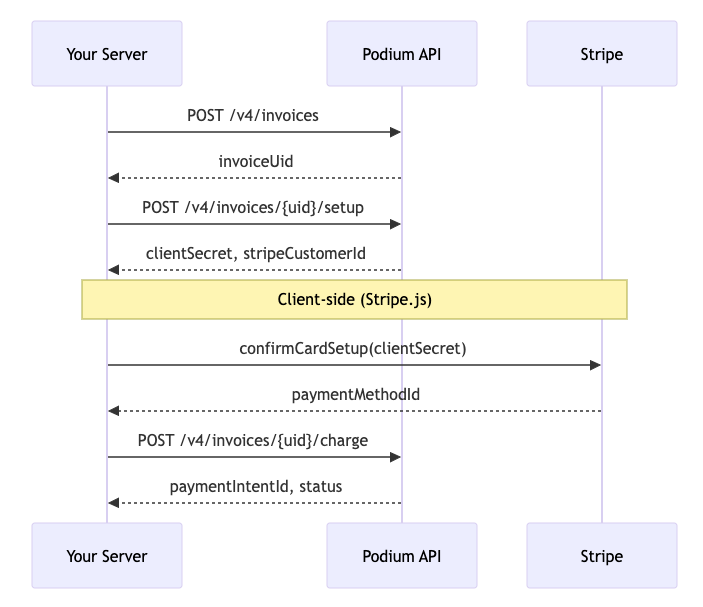
The manual entry payment flow has four steps:
- Create an invoice — Register the payment amount and line items with Podium
- Create a SetupIntent — Get a Stripe
clientSecretto securely tokenize the card - Collect card details — Use Stripe.js on the client to capture card information (PCI-compliant)
- Charge the invoice — Submit the tokenized
paymentMethodIdto Podium to process the payment
Step 1: Create an invoice
Create an invoice with one or more line items. The total amount is the sum of all line item amounts, in cents.
Request
POST /v4/invoicesHeaders
| Header | Value |
|---|---|
Authorization | Bearer {oauth_token} |
Content-Type | application/json |
Body parameters
| Parameter | Type | Required | Description |
|---|---|---|---|
locationUid | string | Yes | UUID of the Podium location |
customerName | string | Yes | Name of the customer being charged |
channelIdentifier | string | Yes | Customer contact (e.g. phone number or email) |
invoiceNumber | string | Yes | Your reference number for this invoice |
lineItems | array | Yes | One or more line items (min 1, max 10) |
lineItems[].amount | integer | Yes | Amount in cents (total across items must be 50–99,999,900) |
lineItems[].description | string | Yes | Description of the line item (max 50 characters) |
accountUid | string | No | UUID of an existing Podium contact |
allowedPaymentOptions | array | No | Restrict payment methods: "creditCard", "debitCard", "bankAccount", "buyNowPayLaterAffirm" |
Example
curl --request POST \
  --url https://api.podium.com/v4/invoices \
  --header 'Authorization: Bearer {oauth_token}' \
  --header 'Content-Type: application/json' \
  --data '{
    "locationUid": "585e3541-a196-4956-a787-b5f0c1ccdd97",
    "customerName": "Jane Smith",
    "channelIdentifier": "+18015551234",
    "invoiceNumber": "INV-001",
    "lineItems": [
      {
        "amount": 5000,
        "description": "Consultation fee"
      }
    ]
  }'
Response
{
  "data": {
    "uid": "f7e6d5c4-b3a2-1098-7654-321fedcba098",
    "status": "created",
    "amount": 5000,
    "customerName": "Jane Smith",
    "invoiceNumber": "INV-001",
    "currencyRef": "USD",
    "createdAt": "2026-02-19T12:00:00Z",
    "lineItems": [
      {
        "amount": 5000,
        "description": "Consultation fee"
      }
    ],
    "location": {
      "uid": "a1b2c3d4-e5f6-7890-abcd-ef1234567890"
    },
    "allowedPaymentMethods": ["creditCard"],
    "payments": []
  },
  "metadata": {}
}
Save the uid from the response — this is your invoiceUid for the remaining steps.
Step 2: Create a SetupIntent
Request a Stripe SetupIntent for the invoice. This returns a clientSecret that you'll use on the client side to securely collect card details.
Request
POST /v4/invoices/{invoiceUid}/setupHeaders
| Header | Value |
|---|---|
Authorization | Bearer {oauth_token} |
Content-Type | application/json |
Body parameters
| Parameter | Type | Required | Description |
|---|---|---|---|
locationUid | string | Yes | UUID of the Podium location (must match the invoice) |
Example
curl --request POST \
  --url https://api.podium.com/v4/invoices/f7e6d5c4-b3a2-1098-7654-321fedcba098/setup \
  --header 'Authorization: Bearer {oauth_token}' \
  --header 'Content-Type: application/json' \
  --data '{
    "locationUid": "a1b2c3d4-e5f6-7890-abcd-ef1234567890"
  }'
Response
{
  "data": {
    "uid": "f7e6d5c4-b3a2-1098-7654-321fedcba098"
  },
  "metadata": {
    "setupIntent": {
      "clientSecret": "seti_1234567890_secret_abcdefghijklmnop"
    },
    "isTest": true,
    "stripeCustomerId": "cus_1234567890"
  }
}
You'll need three values from this response:
| Field | Usage |
|---|---|
metadata.setupIntent.clientSecret | Pass to Stripe.js to collect card details |
metadata.stripeCustomerId | The Stripe customer associated with this payment |
metadata.isTest | Whether this is a test-mode transaction |
Step 3: Collect card details with Stripe.js (client-side)
This step happens entirely on the client side. Use Stripe.js to collect the card details and confirm the SetupIntent. Card numbers are sent directly to Stripe and never pass through your servers or Podium's — keeping you PCI compliant.
Important: You must use the merchant's Stripe publishable key to initialize Stripe.js. If
isTestistrue, use the test publishable key.
The setupIntent.payment_method value (e.g. pm_1234567890) is the paymentMethodId you'll send to Podium in the next step.
Step 4: Charge the invoice
Submit the paymentMethodId from Step 3 to charge the invoice. This is the final step that processes the payment.
Request
POST /v4/invoices/{invoiceUid}/chargeHeaders
| Header | Value |
|---|---|
Authorization | Bearer {oauth_token} |
Content-Type | application/json |
Body parameters
| Parameter | Type | Required | Description |
|---|---|---|---|
locationUid | string | Yes | UUID of the Podium location |
paymentMethodId | string | Yes | The Stripe payment method ID from Step 3 (e.g. pm_1234...) |
idempotencyUid | string | No | UUID to prevent duplicate charges. Strongly recommended. |
shouldSaveCardOnFile | boolean | No | Save this card for future payments. Defaults to false. |
Example
curl --request POST \
  --url https://api.podium.com/v4/invoices/f7e6d5c4-b3a2-1098-7654-321fedcba098/charge \
  --header 'Authorization: Bearer {oauth_token}' \
  --header 'Content-Type: application/json' \
  --data '{
    "locationUid": "a1b2c3d4-e5f6-7890-abcd-ef1234567890",
    "paymentMethodId": "pm_1234567890",
    "idempotencyUid": "d4e5f6a7-b8c9-0123-4567-89abcdef0123"
  }'
Response
{
  "data": {
    "uid": "f7e6d5c4-b3a2-1098-7654-321fedcba098",
    "status": "paid",
    "amount": 5000,
    "customerName": "Jane Smith",
    "invoiceNumber": "INV-001",
    "paidAt": "2026-02-19T12:01:30Z",
    "payments": [
      {
        "uid": "ab12cd34-ef56-7890-abcd-1234567890ab",
        "status": "succeeded",
        "cardBrand": "visa",
        "cardLast4": "4242",
        "cardFunding": "CREDIT",
        "createdAt": "2026-02-19T12:01:30Z"
      }
    ]
  },
  "metadata": {
    "paymentAttempt": {
      "paymentIntentId": "pi_1234567890",
      "status": "succeeded",
      "declineCode": null,
      "declineCodeMessage": null
    }
  }
}
Check the metadata.paymentAttempt.status to confirm the result:
| Status | Meaning |
|---|---|
succeeded | Payment was successful |
requires_action | Additional authentication needed (e.g. 3D Secure) |
canceled | Payment was canceled |
Tip: Always pass an
idempotencyUidwhen charging. If a network issue causes a timeout, you can safely retry the same request without risking a double charge.
Error handling
All error responses follow this format:
{
  "code": 400,
  "message": "Description of the error."
}
Updated 7 months ago